Compress Everything.
Automatically.
Add a folder — Litely watches for new files and compresses them in the background. Videos, images, zero effort.
macOS 11+ · Native app


Compress & Upload to Jira / GitLab — Paste & Go
No other tool does this. Take a screenshot or record a video — Litely compresses it by up to 90%, converts the format, and puts the result in your clipboard. Switch to Jira or GitLab, paste into a comment — the file uploads right into the issue or merge request. Markup is inserted automatically. Save — done.
Capture
Take a screenshot or record a video. Save it to Litely's watch folder — compression starts instantly.
Auto-compress & convert
Up to 90% smaller. Format conversion on the fly — JPG → WebP, MOV → MP4. The optimized file goes straight to your clipboard.
Paste into Jira or GitLab
Open a comment in Jira or a merge request in GitLab and press Cmd+V on Mac or Ctrl+V on Windows/Linux. The file uploads directly with a progress indicator.
Markup is ready
Platform markup is inserted automatically — Jira wiki syntax for Jira, Markdown for GitLab. Save the comment — the attachment is linked.

Paste Screenshots Straight Into Claude Code, Codex & Any AI Coding Agent
If you live in Claude Code, Codex, or any AI agent, this is the everyday shortcut you’ve been missing — and it’s ridiculously convenient. The fastest way to brief an assistant is a picture: snap a screenshot of a bug, a stack trace, a Figma frame, or a chunk of code, and Litely compresses it on the spot and drops it on your clipboard. Switch to your terminal, press Cmd+V on Mac or Ctrl+V on Windows/Linux, and say “fix this” or “build this”. It works with the tools you already use — Claude Code, OpenAI Codex, Aider, Amp, opencode, Kimi CLI, Cursor and more. A lighter image uploads in a blink, burns fewer tokens, and always stays under the model’s image-size limit.
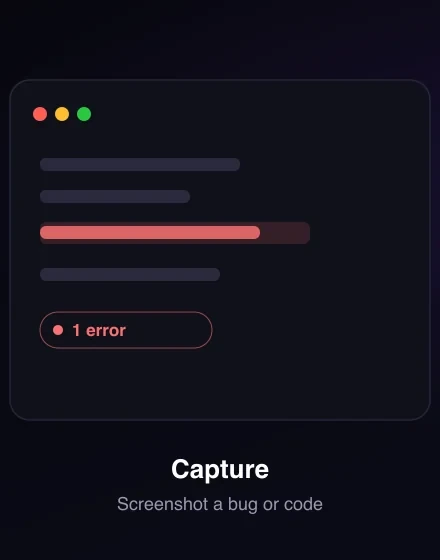
Screenshot your code or bug
Grab a code snippet, a stack trace, a console error, or a broken UI. Save it to Litely’s watch folder — compression starts the instant the screenshot lands.
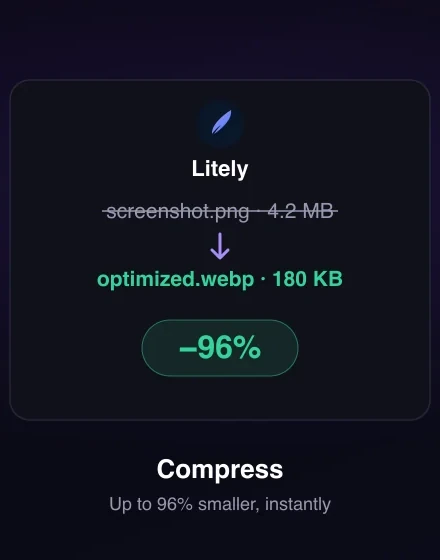
Auto-compressed & copied
Up to 90% smaller in WebP, PNG, or JPEG — the formats every AI CLI accepts. The optimized image goes straight to your clipboard, ready to paste.
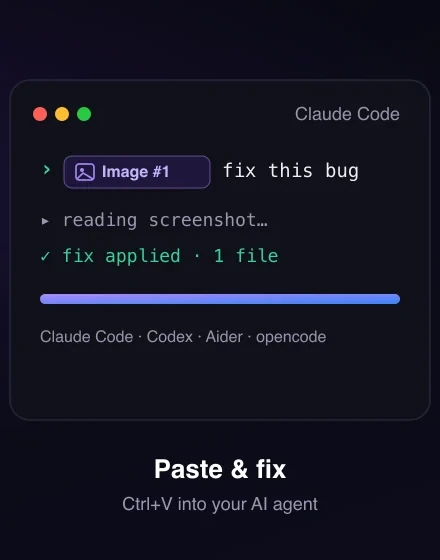
Paste into your AI tool
Press Cmd+V on Mac or Ctrl+V on Windows/Linux in Claude Code, Aider, Amp, or Kimi CLI, attach it to OpenAI Codex or opencode, or drop it into Cursor, Cline, and Kilo Code. The compressed screenshot rides straight into your prompt.
Ask the AI to act
Type “fix this”, “write a unit test”, or “why doesn’t this work?”. The assistant reads your screenshot and edits the code for you.
The loop developers fall for — screenshot → Cmd+V/Ctrl+V → “fix this”. Right inside Claude Code, Codex, or your favorite AI agent.


Works with any language or framework — JavaScript, TypeScript, Python, Rust, Go, Java, Kotlin, Swift, C, C++, C#, PHP, Ruby, Scala, Dart, Elixir, Haskell, Bash, Lua, Zig, R, SQL, HTML/CSS and more.
Watch Folder Compression — Set It and Forget It
Add up to 3 folders — Litely watches them around the clock and compresses every new file automatically.
- Watch up to 3 folders simultaneously
- Real-time detection of new files
- Settings persist between restarts
- Smart filtering — skips hidden, compressed, and output files
- Auto-detects your screenshots folder on first launch
Video Compression — H.264, H.265, AV1 Codecs
From H.264 to AV1 — pick the perfect balance between compatibility and compression ratio.
- GPU acceleration via VideoToolbox (macOS)
- 3 quality presets: Compact, Optimal, Maximum
- Two-pass encoding for optimal quality/size
- Convert: MP4, MOV, AVI, MKV, WebM, FLV, GIF
- Extract audio track from video
- Resize video (fit / width / height)
- Target file size — auto quality adjustment
Compression ratio →
Image Compression — WebP, AVIF, JPEG, PNG, SVG
From WebP to AVIF to SVG — choose the right format and quality for every use case.
- Quality slider 1–100
- Strip EXIF & ICC metadata
- Max Effort mode — slower, better compression
- Target size in KB — auto quality adjustment
- Batch resize — multiple sizes from one image
- Visual before/after comparison
- SVG optimization & raster-to-vector conversion
Input: WebP, AVIF, JPEG, PNG, SVG, HEIC/HEIF, BMP, TIFF
Batch Compression Management
Pause, resume, cancel — manage every compression task with precision.
Pause & Resume
Pause, resume, or cancel individual tasks at any time.
Real-Time Progress
Live progress with estimated time remaining for each task.
Smart History
Task history grouped by date with 7-day auto-cleanup.
Size Tracking
See input size, output size, and percentage reduction for every file.
Tray Progress
Batch processing progress visible right from the system tray.
Date Grouping
Tasks grouped by date — today, yesterday, and older.
System Integration — Runs in Background
Designed to work quietly in the background and stay out of your way.
Drag & Drop
Drop files directly into the app window to start compression.
System Tray
Runs quietly in the system tray — always ready, never in the way.
Floating Progress
Always-on-top progress panel — see status at a glance.
Auto-Copy
Compressed file is automatically copied to your clipboard.
Auto-Delete
Optionally remove originals after successful compression.
Dark & Light
Both themes supported — switch to match your preference.
Built-in Feedback
Report a bug or request a feature without leaving the app — attach a screenshot, track replies in “My requests”.
Native Performance — 7 MB, Instant Launch
Just 7 MB. Launches instantly, works fast, takes up almost nothing.
- Native binary — instant startup
- Hardware-accelerated GPU encoding
- Smooth UI even with thousands of files
- Instant interface response, zero lag
Who Needs a Video & Image Compressor?
Built first for developers and IT teams — paste screenshots straight into Claude Code, Codex, Cursor, Jira, or GitLab. And just as handy for analysts, writers, and creators.
Developers
Paste a screenshot of a bug, an error, or a design into Claude Code, Codex, or Cursor and ship the fix — plus compress assets for web.
Project Managers
Screenshot, compress, and paste straight into Jira or GitLab — markup inserted automatically, files up to 90% smaller.
QA & Testers
Attach a tiny bug repro to the ticket, or drop a screenshot into your AI agent and ask “why does this fail?”.
Analysts
Writing a spec? Copy a chart or table, paste it to your AI assistant — “turn this into…” — and keep docs lightweight.
Tech Writers
Documentation full of screenshots? Compress them to a fraction of the size so pages load fast and stay crisp.
Designers
Share pixel-perfect mockups in seconds, or paste a design into AI and let it build the UI.
Content Creators
Compress videos before uploading to YouTube, TikTok, or Instagram.
Photographers
Batch-optimize images for web galleries and client deliverables.
Everyone Else
Free up gigabytes of disk space without losing quality.
Frequently Asked Questions About Video & Image Compression
How does Litely compress video?
Litely uses modern codecs — H.264, H.265/HEVC, and AV1 — with GPU acceleration on macOS. Choose a quality preset or set a target file size, and Litely adjusts quality automatically. Two-pass encoding ensures optimal quality-to-size ratio.
What video and image formats does Litely support?
Video input: MP4, MOV, AVI, MKV, WebM, FLV, GIF. Video output: MP4, MKV, WebM. Image input: JPEG, PNG, WebP, AVIF, HEIC/HEIF, BMP, TIFF, SVG. Image output: WebP, AVIF, JPEG, PNG, SVG.
Is Litely free?
Litely is a paid app, but a small set of features is free. The free tier covers basic compression; Pro unlocks all codecs, unlimited files, GPU acceleration, batch resize, PDF, and more.
Does Litely work with Cursor and other AI editors?
Yes. Litely copies a compressed screenshot to your clipboard — paste it into Cursor, Cline, or Kilo Code with Cmd+V, or into terminal agents like Claude Code, Codex, Aider, and Kimi CLI with Ctrl+V. The smaller image uploads faster, uses fewer tokens, and stays under the model’s image-size limit.
Why compress a screenshot before pasting into AI?
Smaller images upload in a blink, use fewer tokens, and always stay under the image-size limit of tools like Claude Code, Codex, and Cursor — so your screenshot attaches reliably. Litely shrinks them up to 90% as WebP, PNG, or JPEG, the formats vision models accept.
How is Litely different from HandBrake?
HandBrake is a manual, video-only encoder — you tune every file by hand. Litely is an automatic pipeline: add a watch folder and each new file — video, image or PDF — gets compressed on its own, with no per-file setup. It also adds batch resize, Jira & GitLab integration, and a native lightweight UI using under 40 MB of memory.
Does Litely work in the background?
Yes. Litely runs in the system tray and monitors watch folders 24/7. New files are detected and compressed automatically. You can see progress from the floating panel or tray icon without opening the main window.
Can Litely compress images without losing quality?
Yes. Litely supports lossless PNG and near-lossless WebP/AVIF with a quality slider (1-100). Visual before/after comparison lets you verify quality. Typical savings: 80-90% at quality 85+ with no visible difference.
Can Litely convert HEIC photos from iPhone?
Yes. Litely natively reads HEIC/HEIF images from iPhone and iPad. Drop them into a watch folder or drag-and-drop — Litely converts to WebP, AVIF, JPEG, or PNG with up to 90% size reduction. Batch processing handles thousands of photos automatically.
How do I report a bug or request a feature?
Right inside Litely. Click the feedback button in the header, describe the bug or idea, and attach a screenshot or video — drag & drop or paste with Cmd+V. Your report goes straight to the developer, and you can track replies and respond from the “My requests” tab — no separate account, no leaving the app.
What operating systems does Litely support?
Available for macOS 11+ (Apple Silicon and Intel), Windows 10+, and Linux (Ubuntu 22+, Fedora 38+).
Download Litely — Video & Image Compressor
Free tier available — Pro unlocks everything. Choose your platform.
macOS
macOS 11+Windows
Windows 10+“Litely can’t be opened”? Here’s the 5-second fix.
Litely is a young, independent app — and growing fast. To keep it free and honest while we get there, we haven’t yet paid Apple’s $99/year notarization fee, so on the very first launch macOS shows a one-time “unidentified developer” notice. It’s completely safe and takes five seconds — just follow the steps below.
- Double-click Litely. macOS says it can’t be opened — just click Done
- Open System Settings → Privacy & Security
- Scroll to the bottom and click Open Anyway next to Litely, then confirm

This is temporary. Full Apple notarization lands the moment Litely grows up a little more — then this step disappears for good. Thanks for being an early supporter. 💜
“Windows protected your PC”? Here’s the 5-second fix.
Litely is a young, independent app — and growing fast. To keep it free and honest while we get there, we haven’t yet bought a Windows code-signing certificate, so on the very first launch SmartScreen shows a one-time “unknown publisher” notice. It’s completely safe and takes five seconds — just follow the steps below.
- Run the installer. Windows SmartScreen shows a blue “Windows protected your PC” screen
- Click More info
- Click Run anyway to start the installation
This is temporary. A signed installer lands the moment Litely grows up a little more — then this step disappears for good. Thanks for being an early supporter. 💜